> ## Documentation Index
> Fetch the complete documentation index at: https://docs.directify.app/llms.txt
> Use this file to discover all available pages before exploring further.
# Custom Payment Links – PayPal, Razorpay, Stripe
> Use PayPal, Razorpay, Stripe Payment Links, Square, or any external payment provider with Directify paid submissions via custom payment links.
Any payment processor that supports payment links will work (PayPal, RazorPay, Square, Stripe Payment Links, etc.). Just create your payment links and configure plans manually.
## Setup
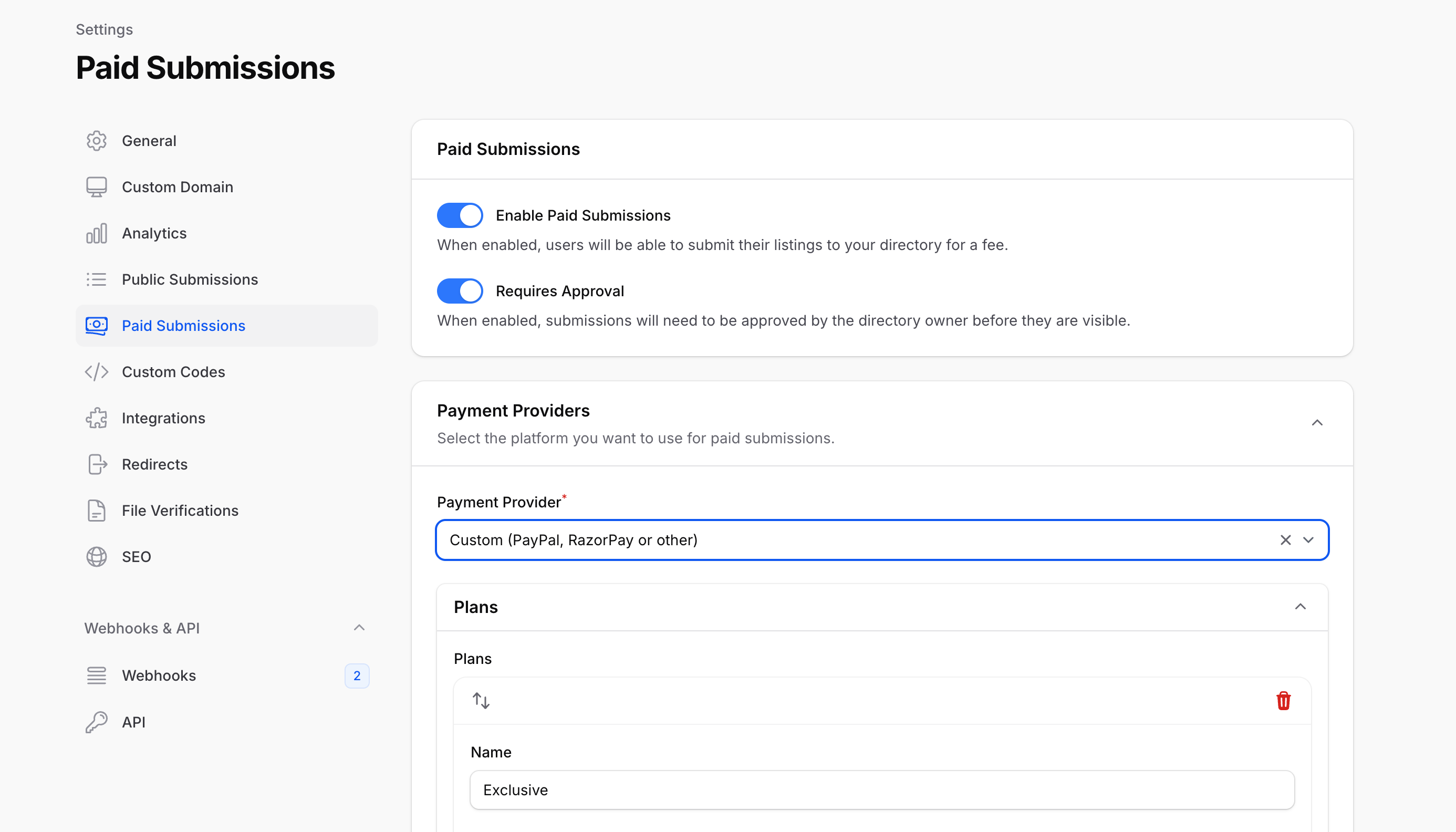
1. Go to **Settings** → **Paid Submissions**
2. Enable **Paid Submissions**
3. Select **Custom (PayPal, RazorPay or other)**
## Create Plans
For each plan, configure:
* **Name** - Plan display name
* **Price** - Amount and currency symbol
* **Payment Link** - URL to your payment processor (e.g., `https://paypal.me/yourbusiness/29`)
* **Button Text** - CTA text (e.g., "Buy Now")
* **Is Subscription** - Toggle for recurring payments
* **Features** - List of included/excluded features
 ## Payment Flow
1. User submits listing and selects a plan
2. User is redirected to your payment link
3. User completes payment externally
4. You manually verify payment and approve the listing
Since payment links don't support webhooks, you'll need to manually check your payment processor and approve listings after payment confirmation.
***
Automated payment processing with Stripe
Global tax-compliant payments with Lemon Squeezy
## Payment Flow
1. User submits listing and selects a plan
2. User is redirected to your payment link
3. User completes payment externally
4. You manually verify payment and approve the listing
Since payment links don't support webhooks, you'll need to manually check your payment processor and approve listings after payment confirmation.
***
Automated payment processing with Stripe
Global tax-compliant payments with Lemon Squeezy