> ## Documentation Index
> Fetch the complete documentation index at: https://docs.directify.app/llms.txt
> Use this file to discover all available pages before exploring further.
# Customize Your Directory: Logo, Themes, Templates
> Customize your Directify directory with logos, themes, templates, fonts, colors, and custom styling — make your directory match your brand.
## Logo & Favicon
Upload your logo and favicon in the settings. Supported formats: PNG, JPG, SVG, ICO.
 ## Templates
Choose from [8 templates](https://directify.app/templates/) to change the overall layout and style of your directory:
* **Default New** - Modern default template
* **Aurora** - Gradient-focused design
* **Stellar** - Space-inspired theme
* **Default** - Classic layout
* **Modern** - Clean, contemporary design
* **Compact** - Dense, information-rich layout
* **Whimsy** - Playful, creative style
* **Job Board** - Optimized for job listings
## Themes
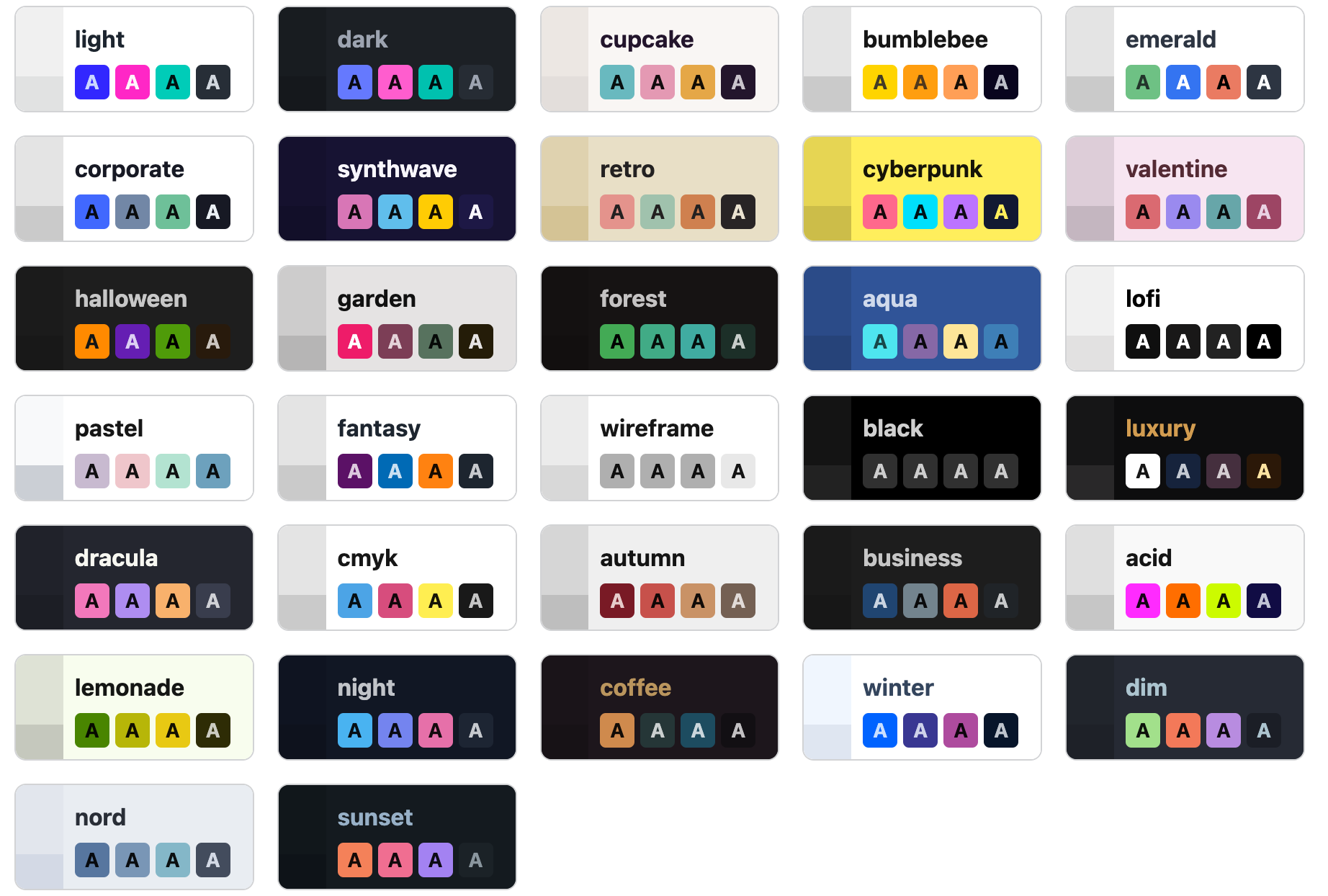
Choose from 30+ color themes powered by [DaisyUI](https://daisyui.com/docs/themes/). Themes apply instantly across your entire directory.
## Templates
Choose from [8 templates](https://directify.app/templates/) to change the overall layout and style of your directory:
* **Default New** - Modern default template
* **Aurora** - Gradient-focused design
* **Stellar** - Space-inspired theme
* **Default** - Classic layout
* **Modern** - Clean, contemporary design
* **Compact** - Dense, information-rich layout
* **Whimsy** - Playful, creative style
* **Job Board** - Optimized for job listings
## Themes
Choose from 30+ color themes powered by [DaisyUI](https://daisyui.com/docs/themes/). Themes apply instantly across your entire directory.
 ### Auto Dark Mode
Enable **Auto Dark Mode** to automatically switch themes based on the user's system preference. You can select which dark theme to use when this is enabled.
Auto Dark Mode is not available for Aurora and Stellar templates as they have their own built-in dark mode handling.
### Font Family
Choose from 10 font families: Poppins, Inter, Roboto, Open Sans, Lato, Montserrat, Source Sans Pro, Nunito, Raleway, Ubuntu.
## Custom Theme
Create your own theme using the [DaisyUI Theme Generator](https://daisyui.com/theme-generator/), then paste the generated CSS into the Custom Theme field:
```css theme={null}
--color-primary: oklch(71% 0.194 13.428);
--color-secondary: oklch(71% 0.202 349.761);
--radius-selector: 0.5rem;
...
```
***
You can also add custom CSS, HTML, and JavaScript to further customize your directory.
### Auto Dark Mode
Enable **Auto Dark Mode** to automatically switch themes based on the user's system preference. You can select which dark theme to use when this is enabled.
Auto Dark Mode is not available for Aurora and Stellar templates as they have their own built-in dark mode handling.
### Font Family
Choose from 10 font families: Poppins, Inter, Roboto, Open Sans, Lato, Montserrat, Source Sans Pro, Nunito, Raleway, Ubuntu.
## Custom Theme
Create your own theme using the [DaisyUI Theme Generator](https://daisyui.com/theme-generator/), then paste the generated CSS into the Custom Theme field:
```css theme={null}
--color-primary: oklch(71% 0.194 13.428);
--color-secondary: oklch(71% 0.202 349.761);
--radius-selector: 0.5rem;
...
```
***
You can also add custom CSS, HTML, and JavaScript to further customize your directory.